Yearly Archives: 2016

How to approximate Pi using C++11 random number generators

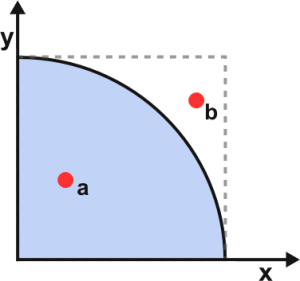
The other day I learnt a method to approximate Pi if you have a random number generator for the range [0,1]. Consider a unit circle centred on (0,0) in 2D coordinates. Then one quarter of the area of the circle lies in the quadrant formed by x and y in range [0,1]. The area of the quarter circle is Pi * R^2/4, and here, R = 1 (it’s a unit circle). So we can generate a bunch of random 2D points, calculate the ratio between those that fall inside the circle and those in the outer unit square, then multiply by 4 to approximate Pi.
approximatepi
That sounds like a neat test case for the C++11 random number generators, so I thought I’d try it out. It turns out to work pretty well, if you’re prepared to use a sufficiently large number of random values.

    double approxPi( size_t points )
    {
        std::random_device rand_device;
        
        // mersenne_twister_engine is a random number engine 
        // based on Mersenne Twister algorithm.
        std::mt19937 generator( rand_device() );
        
        // We want random values uniformly distributed in [0,1]
        std::uniform_real_distribution<> unif_zero_one(0, 1);
        
        size_t points_inside{0};
        
        for (int i = 0; i < points; ++i )
        {
            auto x = unif_zero_one( generator );
            auto y = unif_zero_one( generator );
            double d = std::sqrt( x*x + y*y );
            
            if ( d <= 1.0 )
                ++points_inside;
        }
                
        return 4.0 * (static_cast<double>(points_inside) / static_cast<double>(points));
    }
}

void testApproximatePi()
{
    SHOULD_BE_APPROX( 3.14159, 0.3, approxPi( 100 ) );
    SHOULD_BE_APPROX( 3.14159, 0.1, approxPi( 1000 ) );
    SHOULD_BE_APPROX( 3.14159, 0.01, approxPi( 100000 ) );
    SHOULD_BE_APPROX( 3.14159, 0.001, approxPi( 10000000 ) );
    
    std::cout << "\n";
}

A typical run gives reasonable approximations once you get over 100,000 points:
screen-shot-2016-09-16-at-13-30-26

Leave a comment

Filed under C++, C++ Code, Programming

How to learn Python

Having learnt enough Swift to write a neat watch face app for Apple Watch this summer, I thought I’d turn my attention to learning some Python.

Firstly, I wanted a way to edit Python commands in a decent editor and run them. It appears that Xcode doesn’t support this out of the box, but this handy StackOverflow question gives the details on how to set it up.

Secondly, I wanted a series of challenges/tutorials to walk through the basic syntax of Python. HackerRank.com is very good for this sort of thing and has a decent set of exercises to work through.

My first bug was very revealing about the differences between Python and strongly-typed languages like F# and C++:

N = int(raw_input().strip())
if (n > 10):
    print( "big" )
elif ( N < 0 ):
    print( "negative" )
else:
    print( "normal" )

The Python Interpreter doesn’t give an error because of the typo “n > 10” instead of “N > 10” – it just carries on regardless!

Finally, Python Software Foundation seems like a good reference site with lots of examples.

See also the next post in this series.

3 Comments

Filed under Programming, Python

Solving large puzzles on HackerRank

I’ve solved quite a few puzzles on HackerRank, HackerRankbut this one had me stumped. The actual algorithm didn’t seem too hard, although there is a bit of a trick to it. The problem I had was extending the solution afterwards to handle large numbers. Usually, it’s enough to use ‘long long’ throughout, but it still wasn’t passing all the test cases.

In the end, I narrowed down the problem to the following code:

  long long maximiseScore( int N )
  {
    std::vector<long long> health( N, 0 );
    for ( size_t i = 0; i < N; ++i ) std::cin >> health[i];
    long long sum = std::accumulate( health.begin(), health.end(), 0 );
    // ...
  }

In case you didn’t spot it, the bug is that std::accumulate has inferred the type of the init parameter from 0 (zero), which is an int. So the sum is calculated as an int, then assigned into our long long variable. The solution is to cast the init to a long long (either using ‘LL’ or static_cast).

    long long sum = std::accumulate( health.begin(), health.end(), 0LL );

Leave a comment

Filed under C++, C++ Code, Programming

Video: Writing good C++14 with Guideline Support Library (GSL), Bjarne Stroustrup

ISOCpp.org re-advertised the Channel9 videos from last year’s CppCon, so I thought I’d watch a couple. I started with Writing Good C++14. The slides are available here.

Stroustrup’s aim is to provide guidelines for writing simpler, cleaner C++ – then use this to spread the word of how Modern C++ can be so much better than archaic C++ idioms that have been superseded by new techniques.

But how to do it, because coding guidelines are frequently ignored or wrong. Telling what not to do is not enough – you need to do more than prohibit use of certain language features. Instead, build a set of what you should do – comprehensive, browsable, teachable guidelines.

High-level rules: philosophical approach to coding. And low-level rules: more specific, tangible rules that can be checked using tools (at least in the future) – each rule must have a rationale and an example as well as alternatives/exceptions/enforcement. And Guideline Support Library (GSL) for useful abstractions over messy/dangerous features – e.g. not_null, owner, array_view.

Result could be: productivity doubled (like a great programmer working on a modern codebase); less debugging by eliminating whole classes of errors – resource leaks, dangling pointers.

For example, dealing with range checking:

// Before
void f( int* p, int n ) // this is Stroustrup's least favourite interface!
{
    p[7] = 9;
    for ( int i = 0; i < n; ++i ) p[i] = 7;
}

// Guideline - better
void f( array_view<int> a)
{
    a[7] = 9; // checkable against a.size() e.g. in debug mode
    for (int x : a ) a = 7;
}

Example – dealing with null pointers:

// Before
void f( char* p )
{
    if ( p == nullptr ) // is it necessary to check every time?
    {
    }
}

// Guideline - better
void f( not_null<char*> p )
{
    // no longer needs to check, not_null<> cannot hold nullptr.
}

This looks pretty interesting – there’s a VS2015 plugin to run the GSL tools too. This featured in the follow-up presentation by Herb Sutter:
Screen Shot 2016-08-19 at 16.52.11

Leave a comment

Filed under C++, Programming, Video

How to draw text onto an image in Apple Watch App

Suppose you want to label an item in your WatchKit App. If you’re able to put a label widget onto the storyboard next to the item, that’s fine – but if you’re using Core Graphics to construct an overlay image, chances are you’ll need to draw the text onto the image too. My ultimate aim was to be able to draw the date on my Watch Face App.

It took some digging to find out how to do this. The obvious candidate was CoreGraphics.CGContextShowTextAtPoint, but that’s deprecated from WatchKit 2.0 onwards. Its replacement is the CoreText library, but “import CoreText” doesn’t find it.

CGContextShowTextAtPoint

Searching on StackOverflow met with little success, possibly because people’s solutions might work for iPhone Apps but don’t satisfy the restricted API available for WatchKit Apps. However, I found this gem which did work on the Apple Watch.

As a worked example, let’s take the Treasure Map App from an earlier post. It’s natural for a treasure map to indicate what’s buried at the cross. I’ve changed the method signature from the one on StackOverflow so that you specify the centre of the text block.

    func drawText( context : CGContext?, text : NSString, centreX : CGFloat, centreY : CGFloat )
    {
        let attributes = [
            NSFontAttributeName : UIFont.systemFontOfSize( 20 ),
            NSForegroundColorAttributeName : UIColor.blackColor()
        ]
        
        let textSize = text.sizeWithAttributes( attributes )
        
        text.drawInRect(
            CGRectMake( centreX - textSize.width / 2.0,
                        centreY - textSize.height / 2.0,
                        textSize.width,
                        textSize.height ),
            withAttributes : attributes )
    }    

Calling this from drawCross() in the Treasure Map App results in a neat label underneath the cross:

        drawText( context, text: "Gold", centreX: 100, centreY: 210 )

Screen Shot 2016-08-05 at 08.00.08

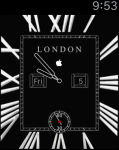
Using the same method, I updated my Watch Face App to draw the day and date onto this watch face:

Screen Shot 2016-08-07 at 21.28.23

See also: How to write a Watch Face App for Apple Watch and How to draw on top of an image in Apple WatchKit

1 Comment

Filed under Programming, Swift

How to write a Watch Face App for Apple Watch

Having owned an Apple Watch for over a year, I’ve grown a little bored with the available watch faces. So I was very impressed with the new, special edition Hermes watch face. This is quite different to any of the other faces on the Apple Watch. Unfortunately, it’s only available to new purchasers who buy the brand new Hermes Apple Watch – starting at £1000.

HermesFace2

Having written my first Watch App recently, I thought I’d have a go at writing a Watch Face App. Apple WatchKit doesn’t officially support writing watch faces, so this would have to be an ordinary App that happens to display the time. There are plenty of custom faces you can use as wall-paper to create an attractive digital watch, but I wanted the analogue look.

The approach I took was:

  • Start with an image e.g. from the custom faces library
  • Look up how to get the current time in the WatchKit API
  • Find out how to draw graphics on top of an image
  • Work out the maths to draw the hands in the right place
  • Work out how to render proper watch hands

I already blogged about how to get the current time and how to draw graphics on top of an image. So if you followed along, you can replace your Treasure Map image with a watch face image and use the createContext(), drawLine() and applyContextToImage() methods to draw the hour and minute hands. In fact, by making the colour a parameter of drawLine(), you’ve got the method to draw the second hand too.

As for the maths to draw the hands in the right place, it’s trigonometry. Both sin and cos are available in WatchKit, so convert the hours/minutes into radians and calculate the end coordinate of your watch hand, treating the length of the hand as the hypotenuse of a right-angled triangle.

[edit]I had a request to post the maths for this. Suppose you want to draw a hand at 12 minutes past. Convert that into a fraction of how far the hand has moved – here, 12 mins out of a possible 60 mins. Then work out whether it’s in the top-right, bottom-right, bottom-left or top-left quadrant of the watch face (that affects which sin/cos functions you’ll use) – here, 12/60 = 0.2, so it’s between 0.0 and 0.25, hence it’s in the first quadrant.

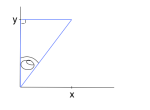
To calculate the x and y coordinates for the top-right quadrant, we form a right-angled triangle between the hand and the y-axis. The hand forms the hypotenuse of the triangle, let’s choose length = 100. So knowing the minutes as a fraction, and the length of the hand, here’s a function to calculate the x and y coordinates as an offset from the centre of the watch face, using trigonometry:
func handCoordinate( _ fraction : CGFloat, length : CGFloat ) -> (x : CGFloat, y : CGFloat )
{
    let x : CGFloat, y : CGFloat

    if ( 0 <= fraction && fraction < 0.25 )
    {
        let theta = CGFloat( (fraction/0.25) * π / 2.0 )
        x = length * sin( theta )
        y = -1.0 * length * cos( theta )
    }
    else
    {
        // remaining quadrants left as exercise for the reader!
    }
    
    return (x,y)
}

The simplest way of drawing the hand is then a simple drawLine() from (centreX, centreY) to (centreX + x, centreY + y). For my 42mm watch, centreX and centreY are (156,150) – other sizes will vary.
[/edit]

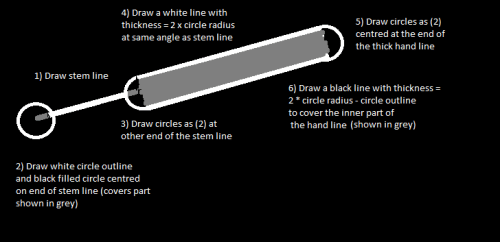
That leaves the trick of how to draw a proper watch hand given only the drawLine() and drawCircle() methods. This is the method I used:
WatchHand

In order to draw the white circle outline with solid black inner-circle, I used this method:

    func drawCircle( context : CGContext?, radius : CGFloat, centreX : CGFloat, centreY : CGFloat, colour : CGColor )
    {
        let diameter = radius * 2.0
        let rect = CGRect( x: centreX - radius, y : centreY - radius, width : diameter, height : diameter )
        
        CGContextSetFillColorWithColor( context, UIColor.blackColor().CGColor )
        CGContextFillEllipseInRect( context, rect )
        
        CGContextSetLineWidth( context, 2.0 )
        CGContextSetStrokeColorWithColor( context, colour )
        CGContextStrokeEllipseInRect( context, rect )
    }

There are a couple of limitations:

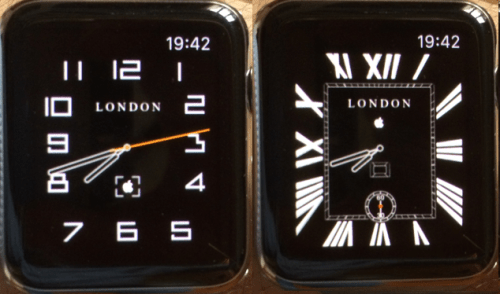
That said, I’m really happy with the results:
Watch Face App

This is actually one Watch App – I changed the Image to a Button so that I could iterate through different watch faces by tapping the watch. If you do this, call button.setBackgroundImage on the button instead of image.setImage.

See also: How to draw text onto an image and How to draw on top of an image.

11 Comments

Filed under Programming, Swift

How to draw on top of an image in Apple WatchKit

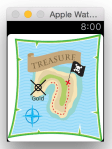
Suppose you’re writing a simple game for Apple Watch – for example, you might have a treasure map image and you want to render a cross on it in a random position to locate the treasure.
treasure-map
This is tricky, because WatchKit severely limits your options for laying out UI primitives on the screen. For example, if you put a label and an image onto a StoryBoard, it will tile them (rather than letting you put one on top of the other).

The approach I’ve adopted is:

  • Create a Group in the story board and set its background image
  • Add an image view within the Group
  • Create a context and use CoreGraphics to write into it
  • Apply the context to the image view

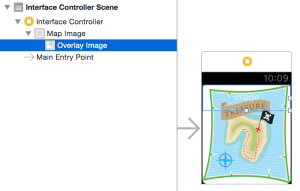
Set up a new iOS WatchKit App, then drag a Group and Image from the Object Library onto the storyboard:
TreasureMap StoryBoard

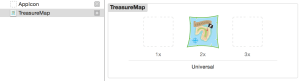
In the WatchKit App assets, create a new image set and drag your background image onto the x2 outline:
TreasureMap ImageSet

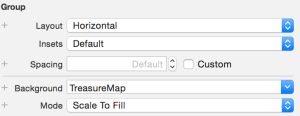
Set the background image on the group:
TreasureMap SetBackground

Then create an outlet in the InterfaceController for the image – one way is to control-drag from the outline view of the storyboard into the interface controller’s swift file. I called mine OverlayImage to convey the purpose.

Finally, add the code that will leverage the CoreGraphics library to draw into the overlay – the work is done in drawCross() which is called from awakeWithContext(). I’ve split out line and circle drawing methods for clarity.

class InterfaceController: WKInterfaceController {
    // Create by control-dragging to the StoryBoard
    @IBOutlet var OverlayImage: WKInterfaceImage!
    
    let imageWidth : CGFloat = 312.0
    let imageHeight : CGFloat = 348.0 // 390 - 42 for status bar on 42mm watch
    
    override func awakeWithContext(context: AnyObject?) {
        super.awakeWithContext(context)
        drawCross()
    }

    override func willActivate() { ... } // standard
    override func didDeactivate() { ... } // standard
    
    func drawCross()
    {
        // Begin image context and grab context
        let context = createContext()
        
        // Draw our primitives
        drawLine( context, startX: 75, startY: 150, endX: 125, endY: 200 )
        drawLine( context, startX: 75, startY: 200, endX: 125, endY: 150 )
        drawCircle( context, radius : 10, centreX : 100, centreY : 175 )
        
        // End by applying our graphics to the Overlay image
        applyContextToImage( context )
    }
    
    func createContext() -> CGContext?
    {
        // The 'opaque' parameter is false, so that we overlay 
        // rather than the static image underneath
        UIGraphicsBeginImageContextWithOptions( CGSizeMake( imageWidth, imageHeight ), false, 0 )
        let context = UIGraphicsGetCurrentContext()
        CGContextBeginPath( context )
        
        return context
    }
    
    func drawLine( context : CGContext?, startX : CGFloat, startY : CGFloat, endX : CGFloat, endY : CGFloat )
    {
        CGContextSetStrokeColorWithColor( context, UIColor.blackColor().CGColor )
        CGContextSetLineWidth(context, 3.0)
        CGContextMoveToPoint( context, startX, startY )
        CGContextAddLineToPoint( context, endX, endY )
        CGContextStrokePath( context )
    }
    
    func drawCircle( context : CGContext?, radius : CGFloat, centreX : CGFloat, centreY : CGFloat )
    {
        let diameter = radius * 2.0
        let rect = CGRect( x: centreX - radius, y : centreY - radius, width : diameter, height : diameter )
        
        CGContextSetLineWidth( context, 3.0 )
        CGContextSetStrokeColorWithColor( context, UIColor.blackColor().CGColor )
        CGContextStrokeEllipseInRect( context, rect )
    }
    
    func applyContextToImage( context : CGContext? )
    {
        let img = UIGraphicsGetImageFromCurrentImageContext()
        UIGraphicsEndImageContext()
        OverlayImage.setImage( img )
    }

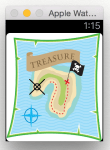
All being well, you can now run your WatchKit App and check that the black cross and circle have been drawn on top of the background image!

TreasureMap WatchApp

3 Comments

Filed under Programming, Swift

How to write Extension Methods in F# and Swift

I’ve used extension methods for a while in F# as a neat way of adding utility methods to system types. For example, suppose you have a set and want to add some elements to it? You might write something like this:

  let collection = ... // initial set defined elsewhere
  let collection = // add extra elements into collection
    [| 1; 2; 3 |] |> Array.fold (fun (acc : Set<'T>) item -> acc.Add item) collection

You might find yourself writing this snippet frequently and for different container types. Instead of defining the operation every time, it’s better to write an extension method:

namespace MusingStudio.Extensions
module Set =
  let AddMulti (items : seq<'T>) (collection : Set<'T>) =
    items |> Seq.fold (fun (acc : Set<'T>) item -> acc.Add item) collection

Then, by bringing the extensions into scope, we can call AddMulti as if it were part of the system Set interface:

open MusingStudio.Extensions

[<EntryPoint>]
let main argv = 
    let initial = [| 1; 2; 3 |] |> Set.ofArray
    let updated = initial |> Set.AddMulti [| 4; 5; 6 |]
    printfn "%A" updated
    0 // return an integer exit code

I was looking for a way to get the current time/date in Swift, and found some code on Stack Overflow that uses Extension Methods to do it. I’ve added a couple more methods to get the seconds and day-of-month:

import Foundation

// From: http://stackoverflow.com/questions/24070450/how-to-get-the-current-time-and-hour-as-datetime
extension NSDate
{
    func hours() -> Int
    {
        //Get Hours
        let calendar = NSCalendar.currentCalendar()
        let components = calendar.components(.Hour, fromDate: self)
        let hours = components.hour
        
        //Return Hour
        return hours
    }
    
    func minutes() -> Int
    {
        //Get Minutes
        let calendar = NSCalendar.currentCalendar()
        let components = calendar.components(.Minute, fromDate: self)
        let minutes = components.minute
        
        //Return Minute
        return minutes
    }
    
    func seconds() -> Int
    {
        // Get Seconds
        let calendar = NSCalendar.currentCalendar()
        let components = calendar.components(.Second, fromDate: self)
        let seconds = components.second
        
        return seconds
    }
    
    func day() -> Int
    {
        // Get Day
        let calendar = NSCalendar.currentCalendar()
        let components = calendar.components(.Day, fromDate: self)
        let day = components.day
        
        return day
    }
}

This simplifies the interface to NSDate:

  // Get the time properties
  let currentDate = NSDate()
  let minutes = currentDate.minutes()
  let hours = currentDate.hours()
  let seconds = currentDate.seconds()
  let dayOfMonth = currentDate.day()

2 Comments

Filed under F#, Programming, Swift

C++17 News

Herb Sutter blogged about the Oulo ISO C++ meeting. There’s a link to an interview he did for the excellent CppCast podcast and also to a reddit post on features approved at the meeting.
CppCast

As Herb called out in the interview, I think the following two features will be widely used:
Structured Bindings
This is interesting because I’ve been using the std::tie syntax for a while, despite the clumsiness when you need to introduce new variables to take the return types (leaving them uninitialised until assignment). The proposal above avoids that problem.

tuple<T1,T2,T3> f(/*...*/) { /*...*/ return {a,b,c}; }

// BEFORE
T1 x;
T2 y;
T3 z;
std::tie( x, y, z ) = f();

// AFTER
auto [x,y,z] = f(); // x has type T1, y has type T2, z has type T3

Initialisation clause for if and switch
This proposal makes if/switch more consistent with for loops that allow separate initialisation/increment clauses as well as a condition. So now you can initialise a variable separately from the if condition, which also allows you to limit the scope of that variable.

// BEFORE
status_code c = bar();     
if (c != SUCCESS) 
{       
    return c;     
}

// AFTER
if (status_code c = bar(); c != SUCCESS) 
{     
  return c;   
}

Leave a comment

Filed under C++, Programming

IET Meetup: Rosetta Spacecraft Seminar

Meetup - Rosetta SpacecraftI was thrilled when the IET announced that they were organising a seminar on the European Space Agency’s Rosetta mission. I’d followed the progress of the mission and the audacious landing of the Philae probe on the comet – it was fascinating to meet Paulo Ferri, the Operations Manager for the mission. Also speaking was Mark Bentley, Principal Investigator of the MIDAS instrument on board Rosetta.

Rosetta67P

I asked Paulo how the agency chose comet 67P as the target for the mission. Apparently, it wasn’t the original choice, but a failed Ariane rocket caused the mission to pause and the launch window for the original comet was missed. They re-examined the list of choices and given that Rosetta and Philae had already been built, the only other suitable comet for a mission of that type was 67P!

Leave a comment

Filed under Meetup, Technology