
I’ve previously covered how to draw circles and rectangles into an image when writing an Apple Watch app. I had an idea for another watch face that needed triangles – these need a different approach using Watch Kit. Basically, you have to draw a path around the perimeter of the triangle (or any other shape), then fill in the shape. Here’s a function to draw a triangle that points to the left:
    internal func drawTriangle( _ context : CGContext?, centreX : CGFloat, centreY : CGFloat, size : CGFloat, colour : CGColor )
    {
        context?.beginPath()
        context?.move(to: CGPoint(x: centreX - size/2.0, y: centreY))
        context?.addLine(to: CGPoint(x: centreX + size/2.0, y: centreY - size/2.0))
        context?.addLine(to: CGPoint(x: centreX + size/2.0, y: centreY + size/2.0))
        context?.closePath()

        context?.setFillColor(colour)
        context?.fillPath()
    }
And this is the code for drawing a rectangle:
    internal func drawRectangle( _ context : CGContext?, centreX : CGFloat, centreY : CGFloat, width : CGFloat, height : CGFloat, colour : CGColor )
    {
        let origin = CGPoint( x: centreX - width/2.0, y : centreY - height/2.0 )
        let rect = CGRect( origin : origin, size : CGSize(width: width, height: height) )

        context?.setFillColor(colour)
        context?.fill(rect)
    }
Once you can do those primitive triangle/rectangle operations, you can put them together to render any digit you like. So I used them to draw a ‘timeometer’ in this speedo watch face:
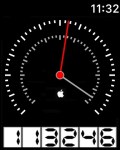
The dial is rendered as a series of ticks – at the moment, it shows minutes and hours. I have to admit I still tend to read the time from the digits at the bottom, so I may change the dial to show seconds and minutes instead.
 musingstudio