
Suppose you’re writing a simple game for Apple Watch – for example, you might have a treasure map image and you want to render a cross on it in a random position to locate the treasure.

This is tricky, because WatchKit severely limits your options for laying out UI primitives on the screen. For example, if you put a label and an image onto a StoryBoard, it will tile them (rather than letting you put one on top of the other).
The approach I’ve adopted is:
- Create a Group in the story board and set its background image
- Add an image view within the Group
- Create a context and use CoreGraphics to write into it
- Apply the context to the image view
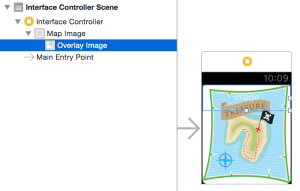
Set up a new iOS WatchKit App, then drag a Group and Image from the Object Library onto the storyboard:
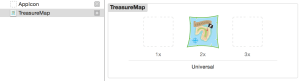
In the WatchKit App assets, create a new image set and drag your background image onto the x2 outline:
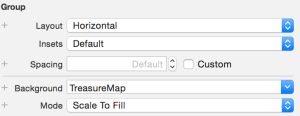
Set the background image on the group:
Then create an outlet in the InterfaceController for the image – one way is to control-drag from the outline view of the storyboard into the interface controller’s swift file. I called mine OverlayImage to convey the purpose.
Finally, add the code that will leverage the CoreGraphics library to draw into the overlay – the work is done in drawCross() which is called from awakeWithContext(). I’ve split out line and circle drawing methods for clarity.
class InterfaceController: WKInterfaceController {
    // Create by control-dragging to the StoryBoard
    @IBOutlet var OverlayImage: WKInterfaceImage!

    let imageWidth : CGFloat = 312.0
    let imageHeight : CGFloat = 348.0 // 390 - 42 for status bar on 42mm watch

    override func awakeWithContext(context: AnyObject?) {
        super.awakeWithContext(context)
        drawCross()
    }

    override func willActivate() { ... } // standard
    override func didDeactivate() { ... } // standard

    func drawCross()
    {
        // Begin image context and grab context
        let context = createContext()

        // Draw our primitives
        drawLine( context, startX: 75, startY: 150, endX: 125, endY: 200 )
        drawLine( context, startX: 75, startY: 200, endX: 125, endY: 150 )
        drawCircle( context, radius : 10, centreX : 100, centreY : 175 )

        // End by applying our graphics to the Overlay image
        applyContextToImage( context )
    }

    func createContext() -> CGContext?
    {
        // The 'opaque' parameter is false, so that we overlay
        // rather than the static image underneath
        UIGraphicsBeginImageContextWithOptions( CGSizeMake( imageWidth, imageHeight ), false, 0 )
        let context = UIGraphicsGetCurrentContext()
        CGContextBeginPath( context )

        return context
    }

    func drawLine( context : CGContext?, startX : CGFloat, startY : CGFloat, endX : CGFloat, endY : CGFloat )
    {
        CGContextSetStrokeColorWithColor( context, UIColor.blackColor().CGColor )
        CGContextSetLineWidth(context, 3.0)
        CGContextMoveToPoint( context, startX, startY )
        CGContextAddLineToPoint( context, endX, endY )
        CGContextStrokePath( context )
    }

    func drawCircle( context : CGContext?, radius : CGFloat, centreX : CGFloat, centreY : CGFloat )
    {
        let diameter = radius * 2.0
        let rect = CGRect( x: centreX - radius, y : centreY - radius, width : diameter, height : diameter )

        CGContextSetLineWidth( context, 3.0 )
        CGContextSetStrokeColorWithColor( context, UIColor.blackColor().CGColor )
        CGContextStrokeEllipseInRect( context, rect )
    }

    func applyContextToImage( context : CGContext? )
    {
        let img = UIGraphicsGetImageFromCurrentImageContext()
        UIGraphicsEndImageContext()
        OverlayImage.setImage( img )
    }
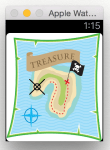
All being well, you can now run your WatchKit App and check that the black cross and circle have been drawn on top of the background image!
 musingstudio
Pingback: How to write a Watch Face App for Apple Watch | musingstudio
Pingback: How to draw text onto an image in Apple Watch App | musingstudio
Pingback: How to switch watch faces using swipe gestures | musingstudio